
Since I moved to Mac I've been missing "open in VS Code" in the right click on folders.
Don't know why I waited until today, but today I lost it over this and went to see how it's done.
So for whoever is interested:
The original version was a thread in Hebrew on X, published August 31, 2026.
Step 1: Create a Quick Action in Automator
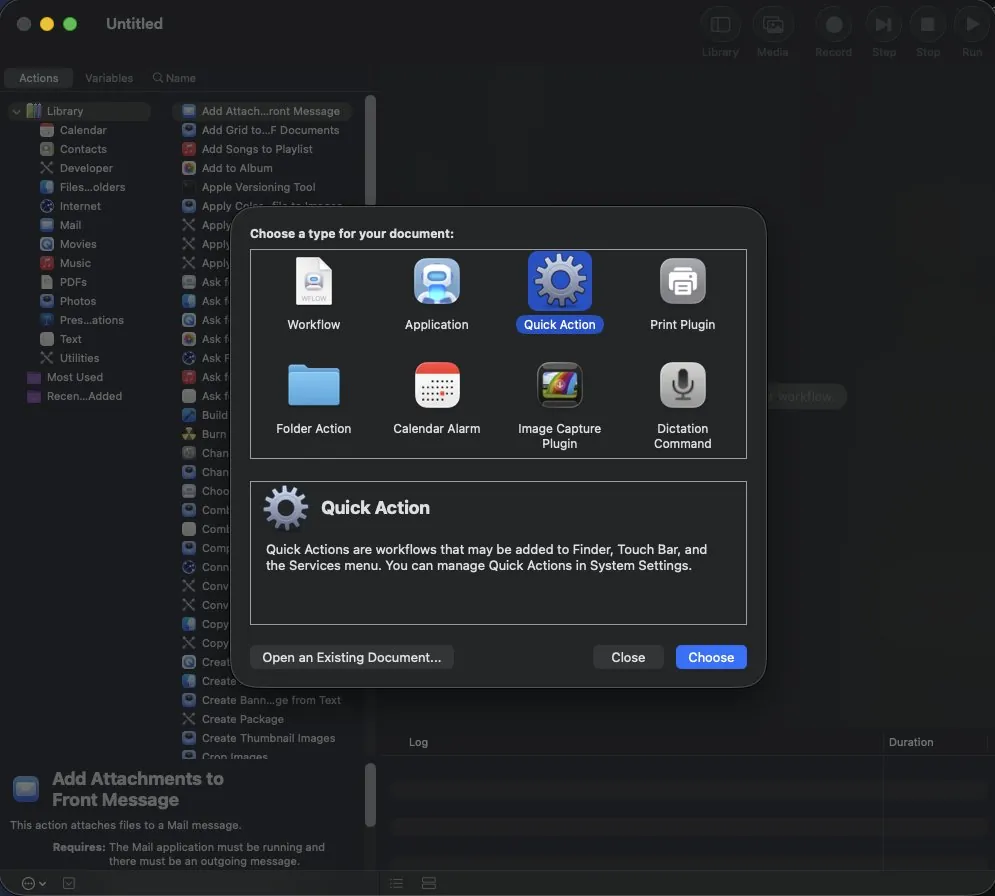
Open Automator and choose Quick Action.
Step 2: Add a Run Shell Script action
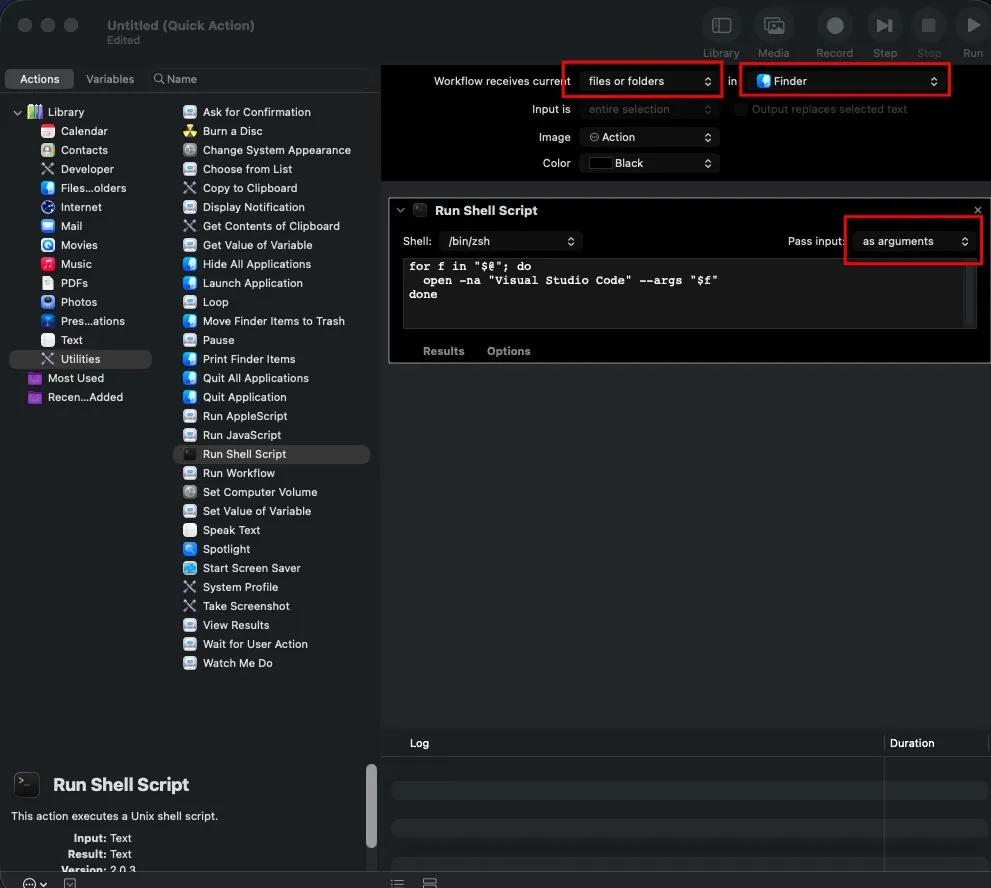
Filter on the left by Utilities and drag Run Shell Script to the right side, and then the window for which shell script to run opens. Replace what's written there with:
for f in "$@"; do
  open -na "Visual Studio Code" --args "$f"
done
And change the following settings according to the markings:
Step 3: Save it and use it from Finder
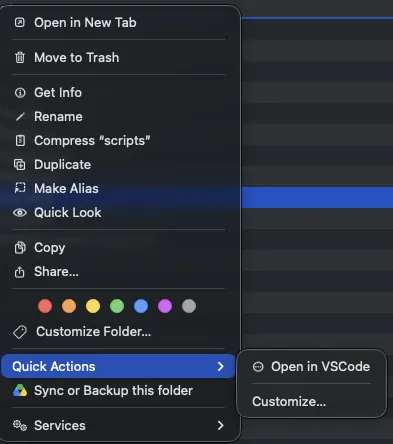
Press CMD+S, give it a name and that's it. Now in Finder we'll see the action we added under Quick Actions.
FAQ
How do I add Open in VS Code to the right-click menu on a Mac?
Open Automator and choose Quick Action. Drag Run Shell Script to the right side and replace its contents with a loop that runs open -na "Visual Studio Code" --args on each selected item. Set it to receive files or folders in Finder, with input passed as arguments, then save with CMD+S. The action shows up in Finder under Quick Actions.